FSFO V7 GUIDE
Settings
Explore FSFO before your first flight. No account or purchase required to read the guides.
Find a setting under the same page and section name you see in FSFO. Each description explains what it changes and when you might use it.
Open Settings in FSFO, then choose a page from its left-hand menu. The sections below follow that menu. Aircraft-specific SOP options are edited from your aircraft’s SOP screen.
Portal
Connect FSFO to your Pilot Portal account, link SimBrief through Navigraph, and set up access from another device.
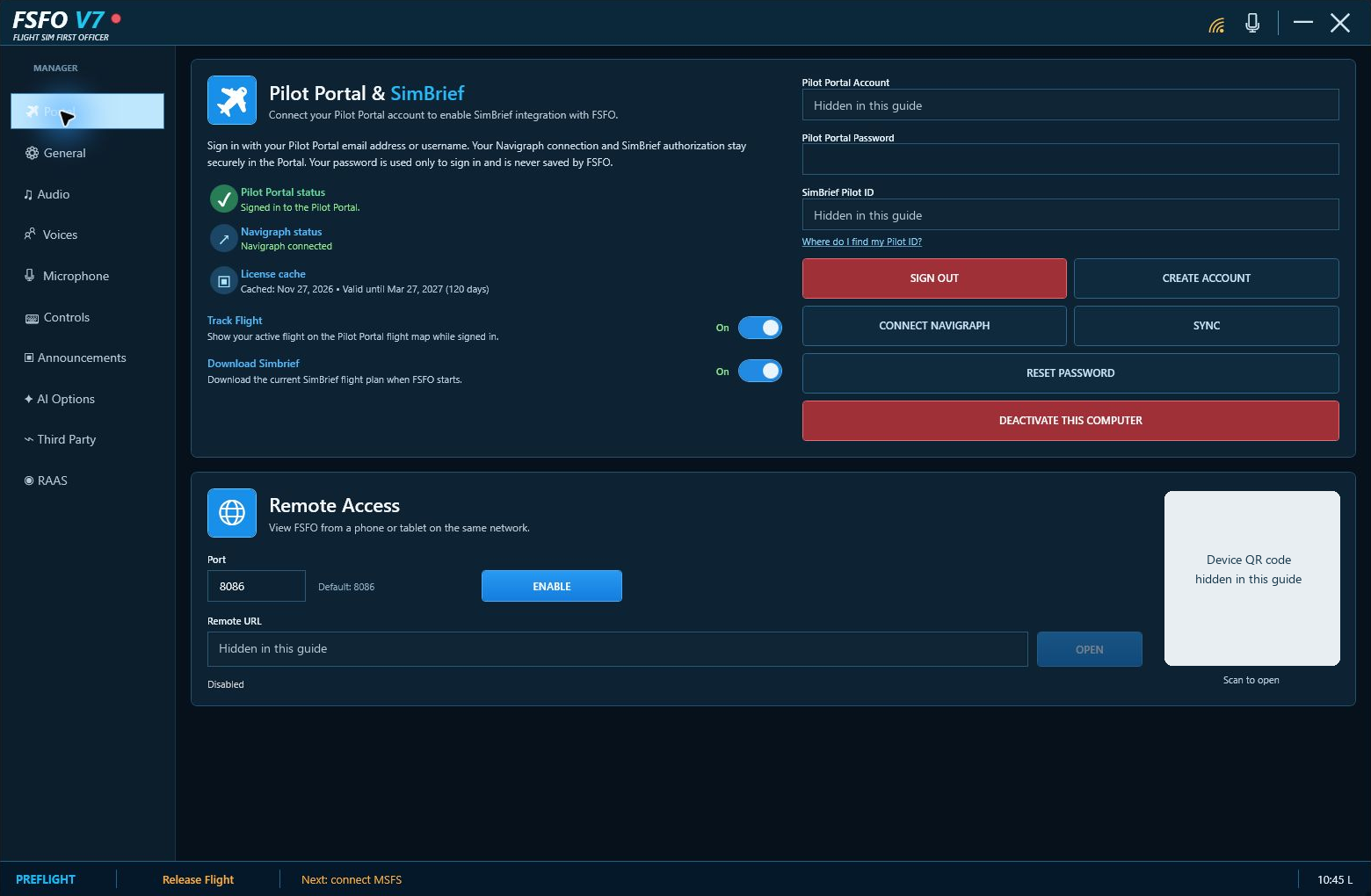
Pilot Portal & SimBrief
- Pilot Portal status / Navigraph status / License cache
Shows whether you are signed in, whether Navigraph is connected, and the aircraft licenses available for offline use.
- Track Flight
Shows your active flight on the Pilot Portal flight map while you are signed in. This choice saves automatically.
- Download Simbrief
Downloads your latest SimBrief flight plan when FSFO starts. Create your flight plan in SimBrief first. This choice saves automatically.
- Pilot Portal Account
Enter the email address or username for your FSFO Pilot Portal account.
- Pilot Portal Password
Enter your Pilot Portal password to sign in. FSFO uses it for sign-in and does not save the password.
- SimBrief Pilot ID
Enter the numeric Pilot ID shown in your SimBrief Account Settings. This is the Pilot ID, not your email address or account name. The value saves when you leave the field.
- SIGN IN / SIGN OUT
Signs in to the Pilot Portal and checks your connected services and licenses. After sign-in, the button becomes SIGN OUT. Signing out keeps downloaded aircraft licenses available until they expire.
- CREATE ACCOUNT
Opens the Pilot Portal account-registration page.
- CONNECT NAVIGRAPH
Opens your browser so you can approve the Navigraph connection. Complete the approval there, then check Navigraph status in FSFO.
- SYNC
Refreshes your aircraft licenses for up to 120 days of offline use. Sign in and connect to the internet to refresh them.
- RESET PASSWORD
Opens the Pilot Portal password-reset page.
- DEACTIVATE THIS COMPUTER
Removes aircraft access from this computer after confirmation. End any active flight first. You will need to activate your aircraft again before flying here; this does not reset activation counts. Signing out alone does not deactivate this computer.
Remote Access
- Port
Sets the network port used to open FSFO on another device. The default is 8086; valid values are 1–65535. Leave the default unless you need to change it. It saves automatically.
- ENABLE / DISABLE
Turns remote access on or off. Your phone or tablet must be on the same network as the FSFO computer.
- Remote URL / OPEN
Copy the displayed address into the browser on your other device. OPEN opens that address in the browser on this computer.
- Scan to open
Scan the QR code with your phone or tablet to open the displayed address. The status tells you whether remote access is running.
General
Open Settings > General to choose how FSFO runs procedures, displays its windows and records flights. Changes save automatically; look for Settings saved at the top. Scoring changes apply to your next flight.
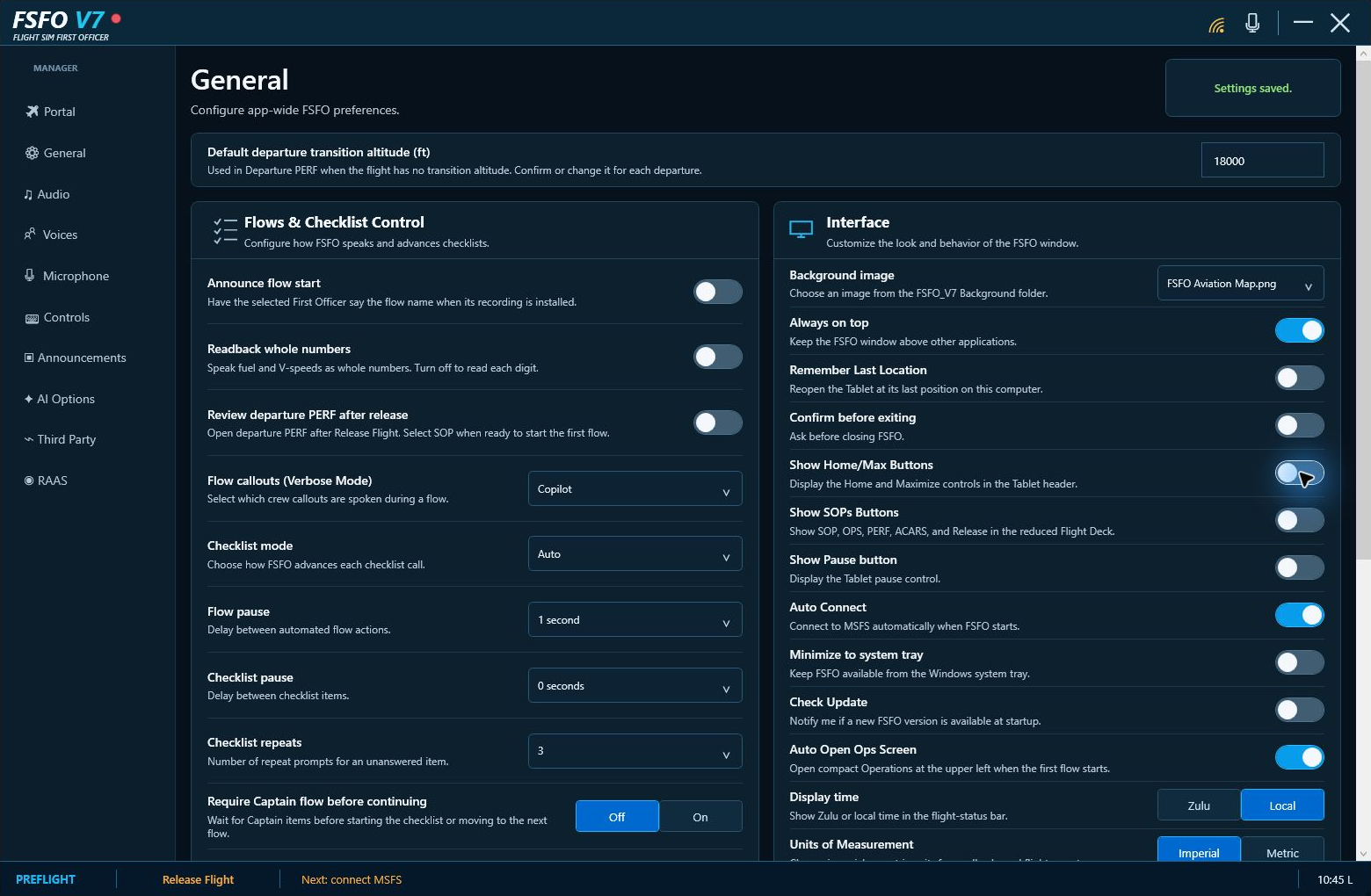
Departure performance
- Default departure transition altitude (ft)
The starting transition altitude used on Departure PERF when your flight does not already supply one. Enter 1,000–60,000 feet, then leave the field to save. Check it against the departure information for each flight.
Example: Enter 18000 if you want 18,000 feet as the starting value; change it on PERF when your departure uses a different altitude.
Flows & Checklist Control
- Announce flow start
The selected First Officer announces a flow's name when it starts, provided that voice's recording is installed.
- Readback whole numbers
Choose how fuel quantities and V-speeds are spoken. On uses whole numbers; Off reads the digits individually.
Example: A speed of 140 is spoken as one hundred forty with this on, or one four zero with it off.
- Review departure PERF after release
Opens Departure PERF after you release the flight so you can review the departure values. Select SOP when you are ready to start the first flow.
- Flow callouts (Verbose Mode)
Choose which tasks receive spoken narration: Captain, Copilot, Both or None. The selected First Officer speaks this narration, including Captain tasks. This choice does not turn off checklist challenges or answers.
Example: Choose Copilot to hear narration of copilot flow tasks; choose Both to hear Captain and copilot tasks.
- Checklist mode
Auto advances when the item's automatic checks are satisfied. Manual lets you complete items with the on-screen controls. Voice - Strict expects the required answer and checks supported spoken values. Voice - Relaxed accepts a wider range of supported checklist answers, while aircraft-specific checks can still require the correct value. In either voice mode, answer the current checklist item; an answer does not operate its aircraft control.
Example: If the item expects Armed, say armed. For a numeric readback, say the actual values for your flight. Test your microphone before choosing a voice mode.
- Flow pause
Adds a pause between automated flow actions. Choose 0–5 seconds in half-second steps. Required waits within a procedure still apply.
- Checklist pause
Sets the pause between checklist items, from 0–5 seconds in half-second steps. Increase it if you want more time between calls.
- Checklist repeats
Sets how many times FSFO repeats a prompt while waiting to confirm an automatic checklist item. Choose 0–5; 0 turns these repeat prompts off. Reaching the limit does not mean the item has been completed.
- Require Captain flow before continuing
On waits for the Captain's flow items before starting the checklist or proceeding to the next flow. Off removes this extra wait. You still need to carry out the Captain's tasks.
- Auto Scroll Copilot
Keeps the current copilot flow item in view as the flow advances. It also collapses Communications when the checklist starts.
Interface
- Background image
Choose the tablet background from the images in the FSFO_V7 Background folder. The selection is previewed and saved automatically.
- Always on top
Keeps the FSFO window above your other application windows.
- Remember Last Location
Reopens the tablet at the last position you used on this computer.
- Confirm before exiting
Asks for confirmation before closing FSFO.
- Show Home/Max Buttons
Shows the Home and Maximize buttons in the tablet's top bar.
- Show SOPs Buttons
Shows the SOP, OPS, PERF, ACARS and Release shortcuts in the reduced Flight Deck view.
- Show Pause button
Shows the tablet's pause control.
- Auto Connect
Attempts to connect to MSFS when FSFO starts. MSFS must be running with your flight loaded for a usable aircraft connection.
- Minimize to system tray
Keeps FSFO available from the Windows system tray when minimized. Use its tray icon to return to the application.
- Check Update
Checks for a new FSFO version at startup and tells you when one is available. If there is no update, no notification is shown.
- Auto Open Ops Screen
Opens the compact Operations window at the upper left when the first flow starts. It does not reopen it at every later flow.
- Display time
Choose Zulu for UTC or Local for your computer's local time in the flight-status bar.
- Units of Measurement
Choose Imperial or Metric for FSFO readbacks and flight reports. Continue to check the units shown in your aircraft and performance pages.
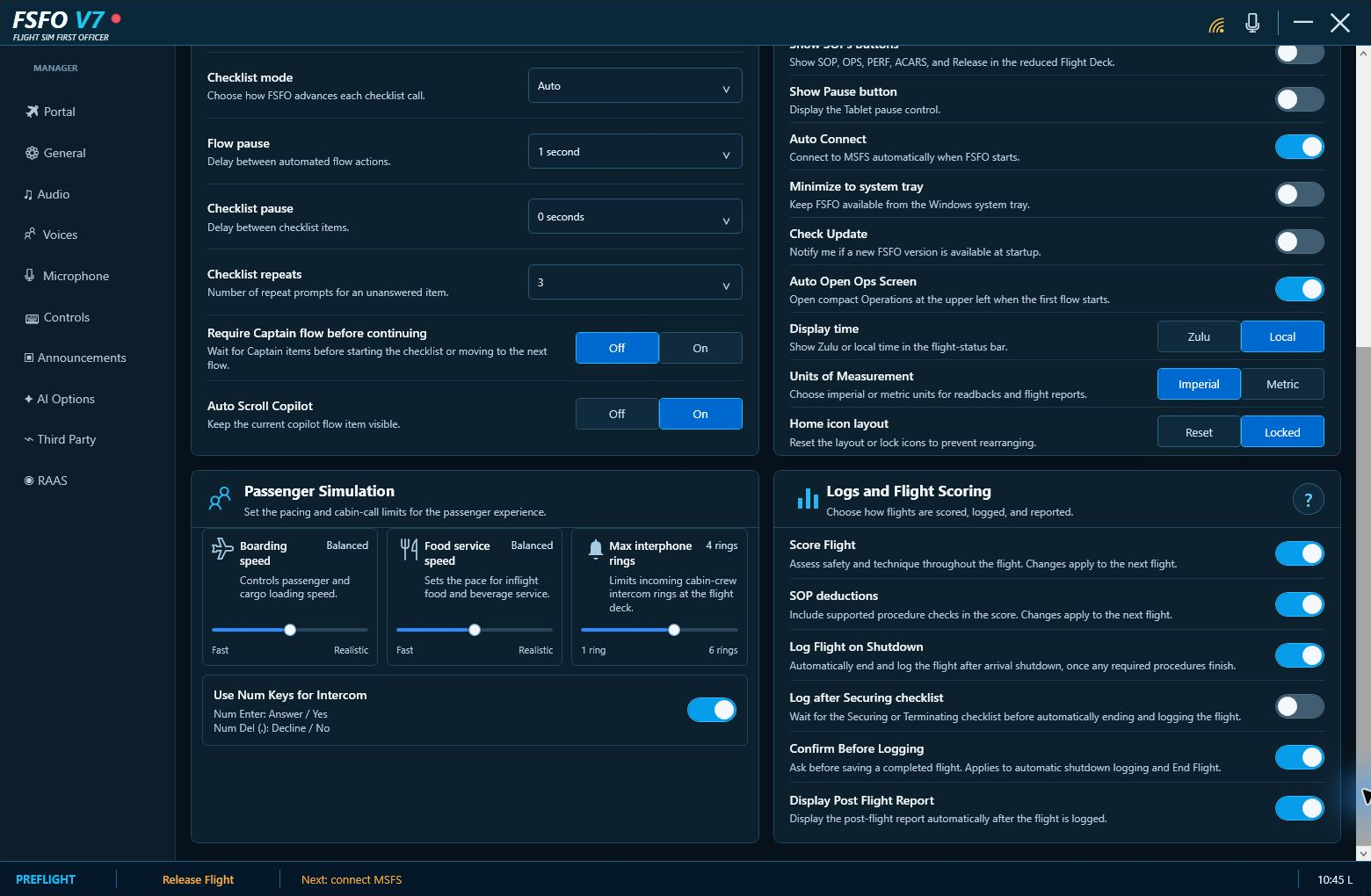
- Home icon layout
Reset restores the original Home icon arrangement. Turn Locked off to drag icons into your preferred positions, then turn it on to keep them in place.
Passenger Simulation
- Boarding speed
Changes the pace of passenger and cargo loading. Move toward Fast for a shorter wait or toward Realistic for a slower boarding experience. The middle range is Balanced.
- Food service speed
Changes the pace of inflight food and beverage service. Move toward Fast for quicker service or toward Realistic for a slower service.
- Max interphone rings
Limits how many times an incoming cabin call rings at the flight deck. Choose 1–6 rings.
- Use Num Keys for Intercom
Lets you handle cabin calls with the numeric keypad. Num Enter answers a ringing call; a new press answers Yes to the cabin question. Num Del (the decimal-point key) declines a ringing call or answers No.
Example: Press Num Enter to pick up the call, listen to the question, then press Num Enter again to reply Yes.
Logs and Flight Scoring
- Score Flight
Assesses safety and flying technique during a flight. Changing this setting takes effect on the next flight. The nearby ? button opens the scoring rules PDF.
- SOP deductions
Includes supported procedure checks in your flight score. Changes take effect on the next flight.
- Log Flight on Shutdown
Automatically ends and logs the flight after arrival shutdown once any required procedures are finished.
- Log after Securing checklist
When automatic shutdown logging is enabled, waits for the Securing or Terminating checklist before ending and logging the flight.
- Confirm Before Logging
Asks before saving a completed flight, both when shutdown logging runs automatically and when you select End Flight.
- Display Post Flight Report
Opens the post-flight report automatically after the flight has been logged.
Audio
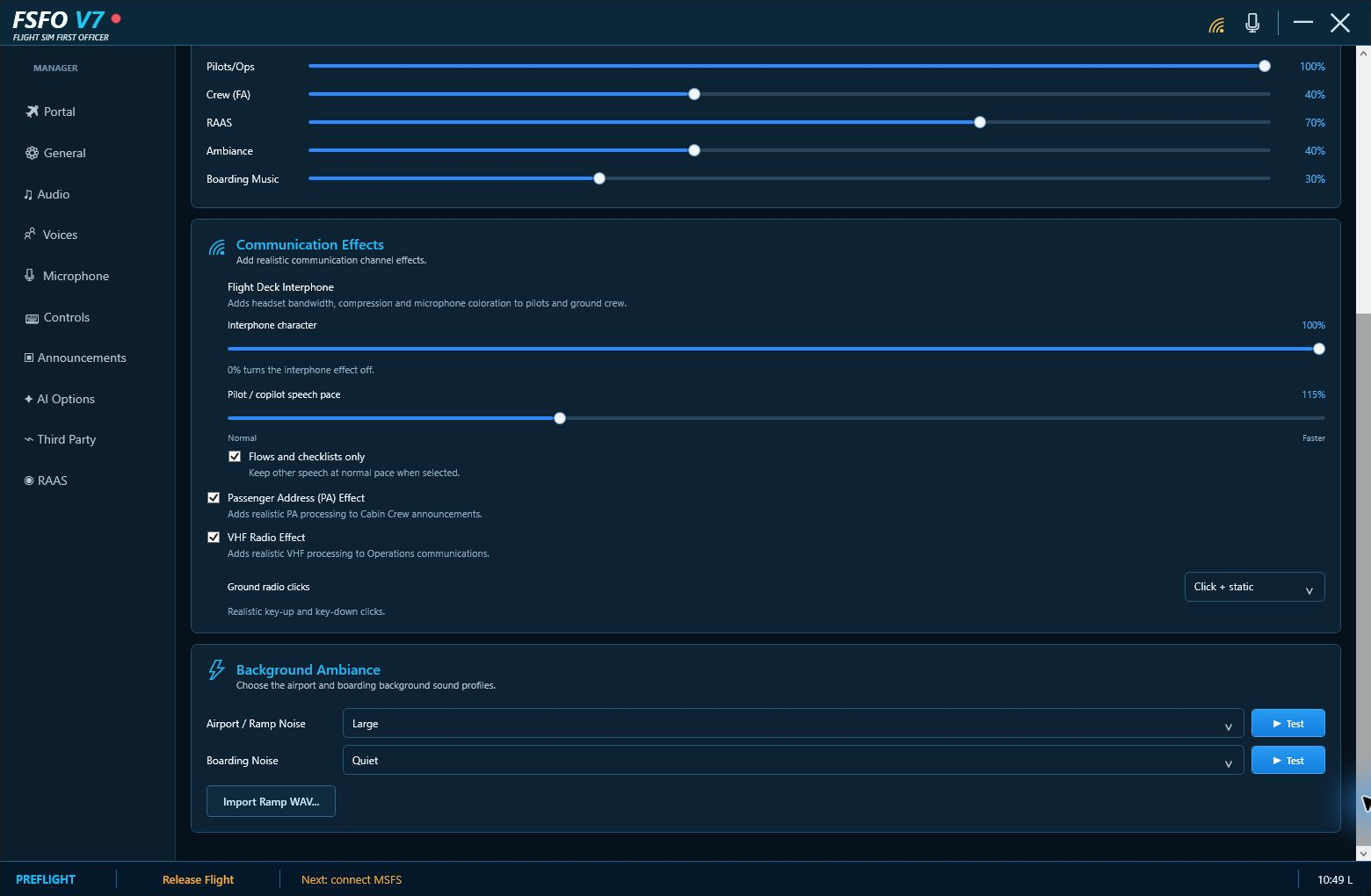
Open Settings > Audio to choose where you hear FSFO and balance its sounds. Changes save automatically. Choose the actual headset or speakers you want, then use the voice tests on the Voices page to check the result.
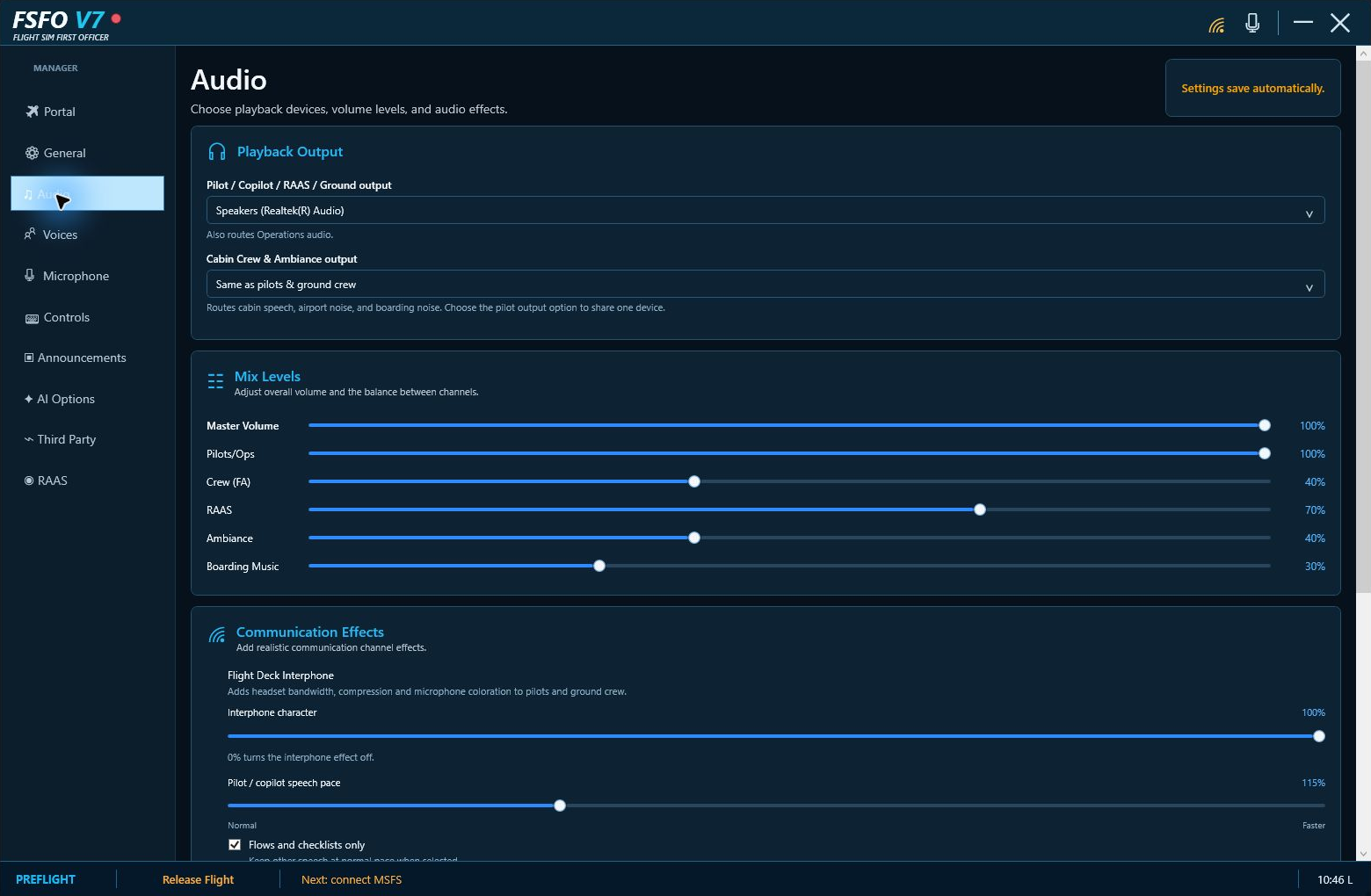
Playback Output
- Pilot / Copilot / RAAS / Ground output
Selects the playback device for the pilots, runway-awareness calls and ground crew. Operations speech also uses this output.
Example: Choose your headset to hear flight-deck and ground communication there.
- Cabin Crew & Ambiance output
Selects the playback device for cabin speech and airport or boarding background sound. Choose the pilot-output option to use the same device for everything.
Example: Choose speakers here and your headset above to separate cabin sound from flight-deck communication.
Mix Levels
- Master Volume
Sets the overall FSFO playback level from 0–100%. A low master level makes every sound quieter, even if its own slider is high.
- Pilots/Ops
Balances Captain, copilot, Operations and ground-crew speech against the other sounds. Use 0–100%.
- Crew (FA)
Sets the cabin-crew speech level from 0–100%.
- RAAS
Sets the volume of runway-awareness announcements from 0–100%.
- Ambiance
Sets airport and boarding background sound volume from 0–100%.
- Boarding Music
Sets boarding music volume from 0–100%.
Communication Effects
- Flight Deck Interphone — Interphone character
Adds a headset/interphone sound to pilot and ground speech. Increase the 0–100% slider for a stronger effect; 0% turns the effect off.
- Pilot / copilot speech pace
Speeds up both pilots' speech without raising its pitch. Choose 100% for normal speed or up to 150% in 5% steps.
- Flows and checklists only
Limits the faster pilot speech pace to flows and checklists. When selected, other pilot speech stays at its normal pace.
- Passenger Address (PA) Effect
Makes cabin-crew announcements sound as though they are coming through the aircraft's passenger-address system.
- VHF Radio Effect
Adds a radio sound to Operations communication.
- Ground radio clicks
Choose Off, Click, or Click + static for the sounds at the start and end of ground-crew transmissions.
Background Ambiance
- Airport / Ramp Noise
Choose None, Medium or Large for the airport background sound, or choose an imported recording. Use the preview button to listen; select it again to stop. Adjust loudness with Ambiance in Mix Levels.
- Boarding Noise
Choose None, Quiet, Moderate or Loud for the boarding background sound. Use the preview button to listen before flying.
- Import Ramp WAV…
Adds your own WAV recording to the available airport/ramp sounds and selects it for use at the gate.
Voices
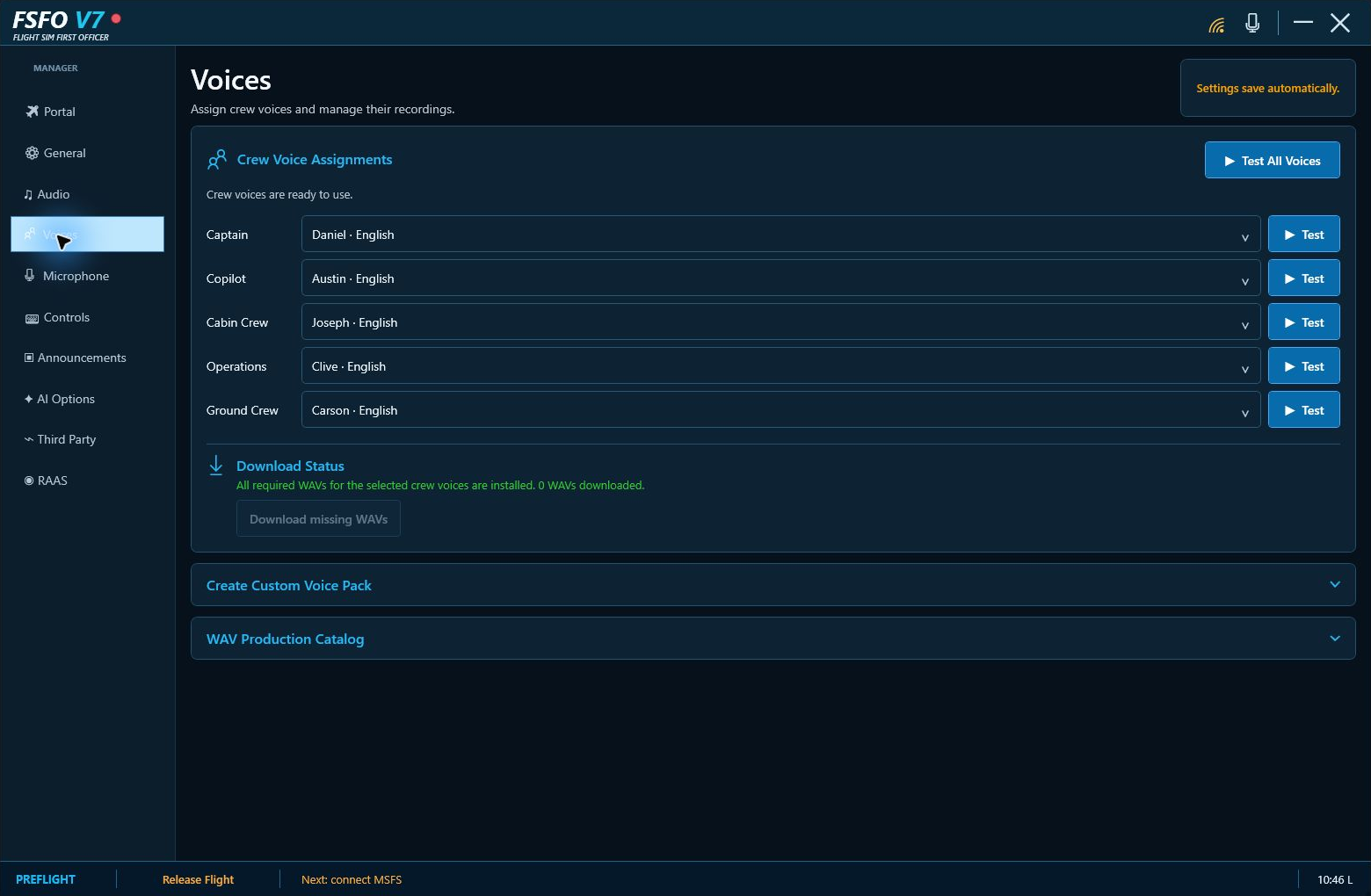
Open Settings > Voices to choose who you hear. Each crew member can have their own voice and English or German language choice. Your selections save automatically. Published recordings play locally once downloaded; you do not need AI simply to play those recordings.
Crew Voice Assignments
- Captain
Chooses the Captain's voice, including checklist answers and numeric readbacks.
- Copilot
Chooses the First Officer's voice for checklist challenges, flow-start announcements and flow narration. Captain flow tasks also use the First Officer for narration.
- Cabin Crew
Chooses the cabin-crew voice for cabin calls and passenger announcements.
- Operations
Chooses the voice used for Operations communication.
- Ground Crew
Chooses the ground-crew voice. This is separate from the pilots and cabin crew.
- Test / Test All Voices
Test plays a sample for that crew member. Test All Voices checks the selected crew together. Use these after choosing voices or changing your playback devices.
- Download Status / Download missing WAVs
FSFO checks the selected published voices and downloads available recordings when you change a selection. This area shows progress or a problem. Download missing WAVs retries missing recordings. If it says recordings are not published, downloading again cannot supply them until they are published.
Create Custom Voice Pack
- Before creating a pack
This optional tool makes recordings using a Cartesia voice you supply. Save your Cartesia key under Settings > Third Party first. Use the normal crew selections above if you want an existing FSFO voice.
- Crew Role
Choose Captain, Copilot, Cabin Crew, Operations or Ground Crew. FSFO creates the recordings needed for that role.
- Recording Language
Choose English or German for the new pack.
- Cartesia Voice ID
Paste the complete voice ID supplied by Cartesia for the voice you want to use.
- Voice Name
Enter the name you want to see in Crew Voice Assignments. Use up to 64 characters and avoid characters that Windows does not allow in folder names.
- Create Voice Pack
Creates the missing recordings and shows progress. When finished, select the pack under My Voices for the chosen crew role. To resume or update a pack, use the same role, language, voice ID and name; existing recordings are kept.
WAV Production Catalog
- Recording list and search
This optional tool lists the crew’s spoken lines and shows which recordings are installed. Search using words from the spoken line or its recording name. Most users can leave this section closed.
- Refresh
Checks the recording list again after you add or change recordings.
- Export
Saves a list of the recordings for you to open in a spreadsheet, with missing recordings listed first.
- Regenerate Line…
Select a crew line to create a replacement recording using that crew member's chosen voice. A saved Cartesia key is required. The recording window lets you review the replacement before accepting it.
Microphone
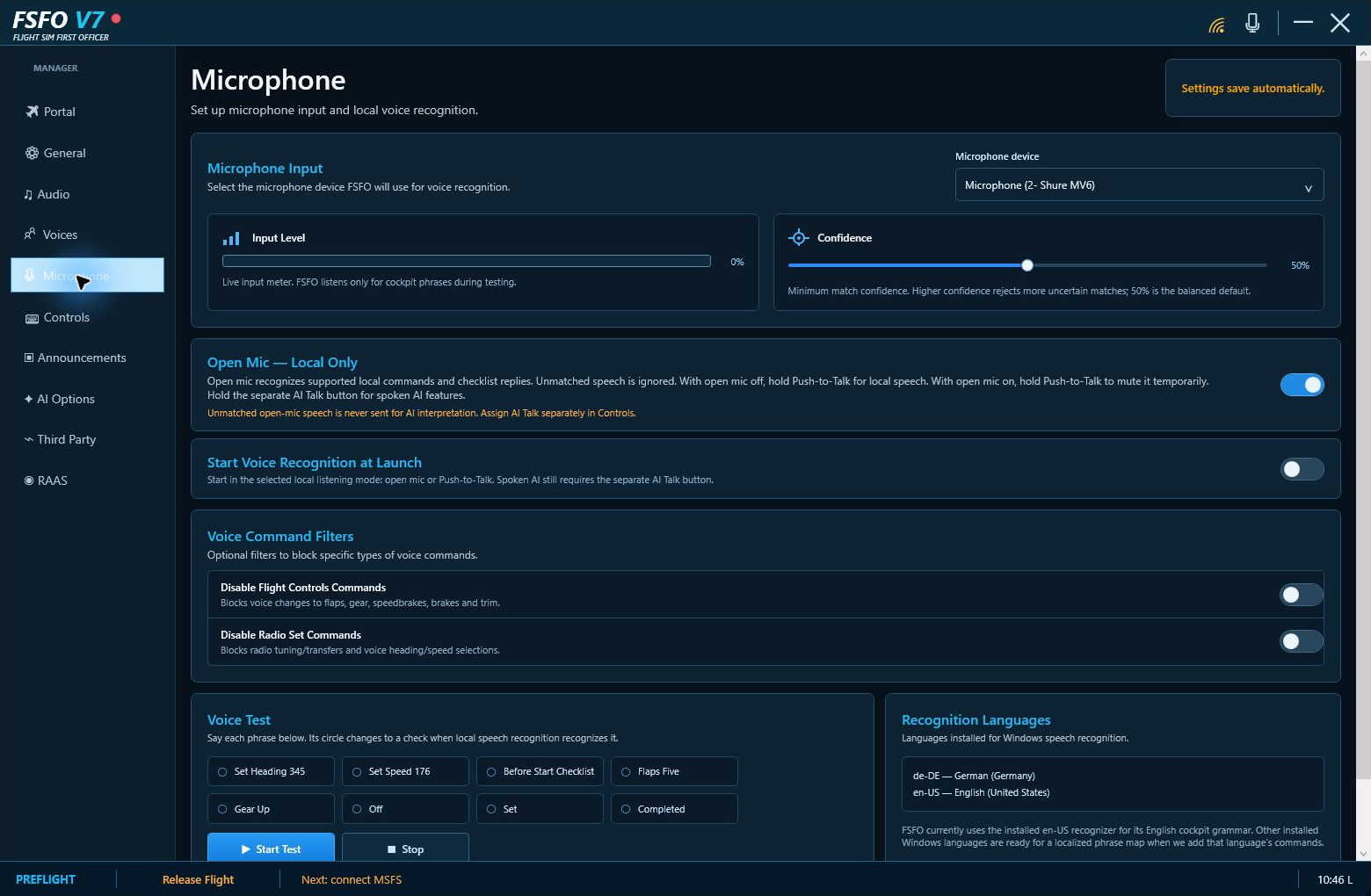
Choose your microphone and how FSFO listens. Standard voice commands and checklist answers work without AI. Changes save automatically.

Microphone Input
- Microphone
Select the microphone you will use to speak to FSFO. Choose your headset microphone if your computer has more than one input.
- Input Level
Watch the meter during a Voice Test to confirm FSFO can hear you. If it does not move when you speak, check the selected microphone and Windows microphone access.
- Confidence
Sets how certain FSFO must be before accepting a recognized phrase. Raise it if unrelated speech is accepted; lower it slightly if clear commands are repeatedly missed. The starting setting is 50%.
Listening
- Open Mic — Local Only
On: FSFO listens continuously for supported commands and checklist answers. Hold Push-to-Talk to mute it temporarily. Off: hold Push-to-Talk while speaking a local command, then release it. Unrecognized speech is ignored; Open Mic and Push-to-Talk do not send speech to AI. Use the separate AI Talk assignment for spoken AI features.
- Start Voice Recognition at Launch
Starts your selected local listening mode when FSFO opens. Assign Push-to-Talk in Controls if you leave Open Mic off. This does not enable AI.
Voice Command Filters
- Disable Flight Controls Commands
Stops voice commands from changing flight controls such as flaps, landing gear, speedbrakes, brakes and trim. Turn this on if you prefer to operate those controls yourself.
- Disable Radio Set Commands
Stops voice commands for tuning and swapping radios, plus voice heading and speed selections. Turn it off when you want to use those commands.
Voice Test
- Start Test
Start the test, then say the phrases shown on the page. Accepted phrases receive a check mark, and FSFO shows the most recent words it recognized. Use this to check your microphone and confidence setting.
- Stop
Ends the microphone voice test.
Recognition Languages
- Installed recognition languages
Shows the Windows speech languages available on this computer. Standard FSFO commands currently use English (United States). The AI language preferences do not translate the standard command list.
Controls
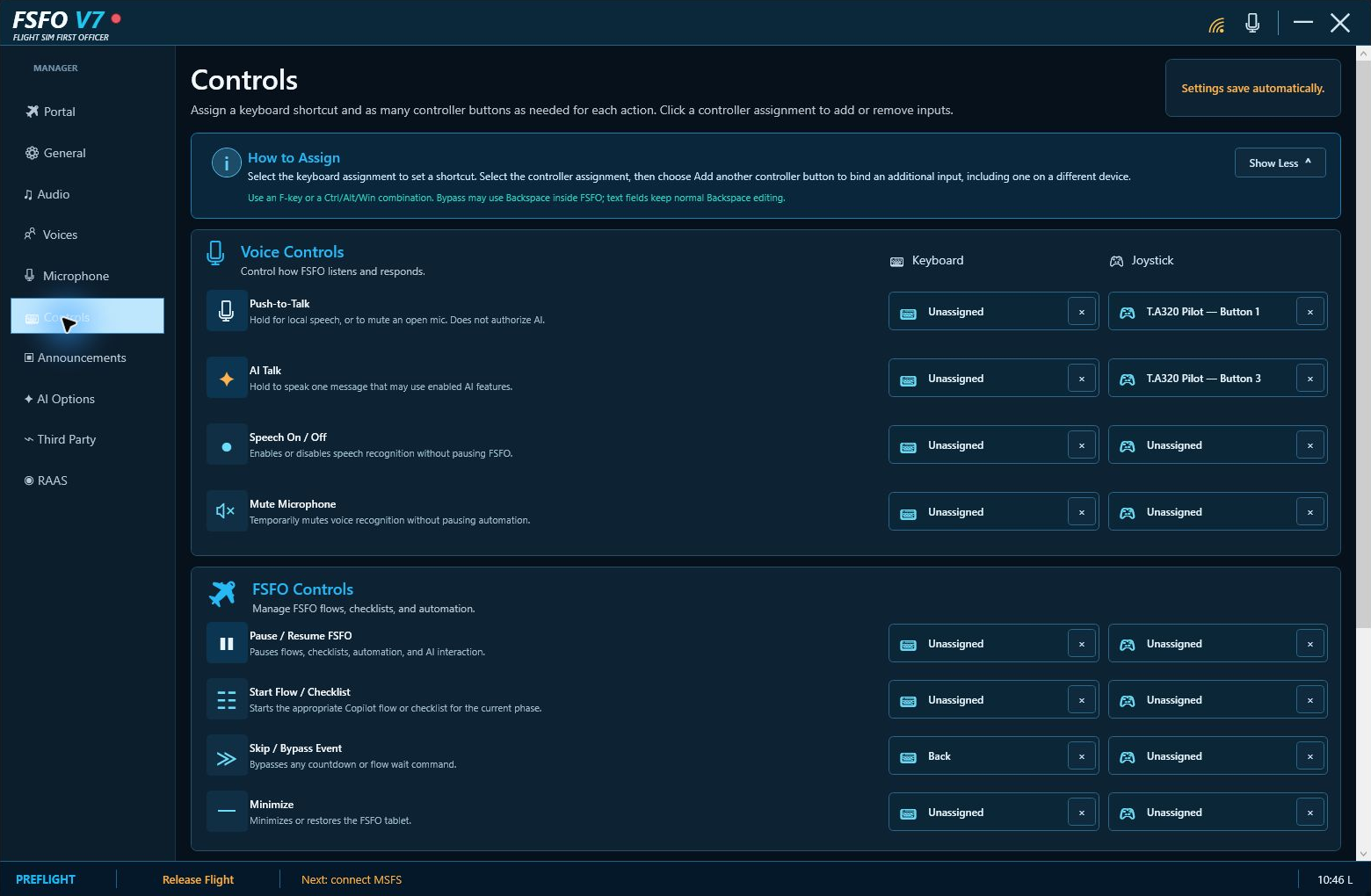
Assign keyboard shortcuts and controller buttons for actions you use frequently. Each action can have a keyboard shortcut and several controller buttons, including buttons on different devices. Assignments save automatically.
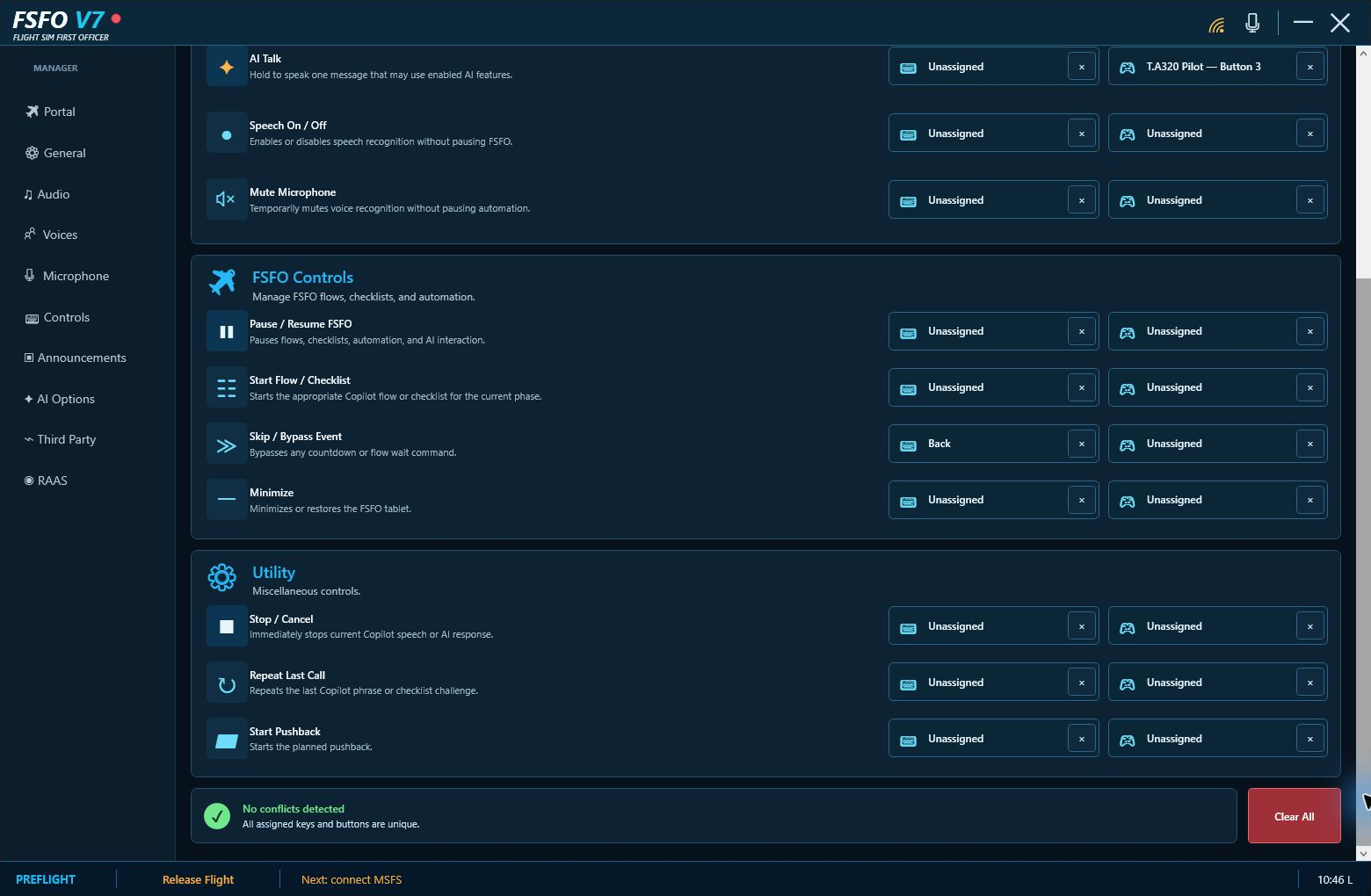
How to Assign
- Keyboard assignment
Click the keyboard assignment beside an action, then press the key or key combination you want to use. Press Esc to cancel. If that shortcut already belongs to another action, it moves to the new action.
- Joystick assignment
Click the controller assignment to manage its buttons. Choose Add another controller button, then press the desired input. You can assign more than one button or device to the same action.
- Clear assignment / Clear All
Use the × beside an action to clear its assignments. Clear All removes all control assignments. The conflict message tells you whether any inputs overlap.
- Show Less / Show More
Hides or shows the assignment instructions.
Voice Controls
- Push-to-Talk
With Open Mic off, hold this while speaking a standard command or checklist answer. With Open Mic on, hold it to mute the open microphone temporarily. This control never authorizes an AI request.
- AI Talk
Hold this separate key or button while speaking one message, then release it. Enabled AI features may interpret that message. Choose the features you want in AI Options.
Example: With Natural Speech Commands enabled, hold AI Talk and say, “Could you run the copilot flow?”
- Speech On / Off
Turns speech recognition on or off without pausing the flight procedures.
- Mute Microphone
Mutes or unmutes voice recognition while FSFO automation continues.
FSFO Controls
- Pause / Resume FSFO
Pauses or resumes flows, checklists, automation and AI interaction. Use the checklist Stand by and Continue commands when you only want to hold a checklist.
- Start Flow / Checklist
Starts the appropriate copilot flow or checklist for the current flight phase.
- Skip / Bypass Event
Moves past the active flow or checklist item, including a countdown or wait. A bypass can leave the item marked as skipped; it does not prove the aircraft control is in the requested position. The keyboard shortcut works while the FSFO window is active, except while typing into a field.
- Minimize
Minimizes or restores the FSFO tablet.
Utility
- Stop / Cancel
Cancels the current voice-command response.
- Repeat Last Call
This shortcut is intended to repeat a copilot call or checklist challenge. It is listed on the page but is not currently available.
- Start Pushback
Starts the pushback you have planned and saved in FSFO. Set up the pushback before using this shortcut.
Announcements
Choose which cabin announcements play, when they play and who speaks. The list saves switches and delivery choices automatically. When you open an editor, use its Save button to keep your changes.
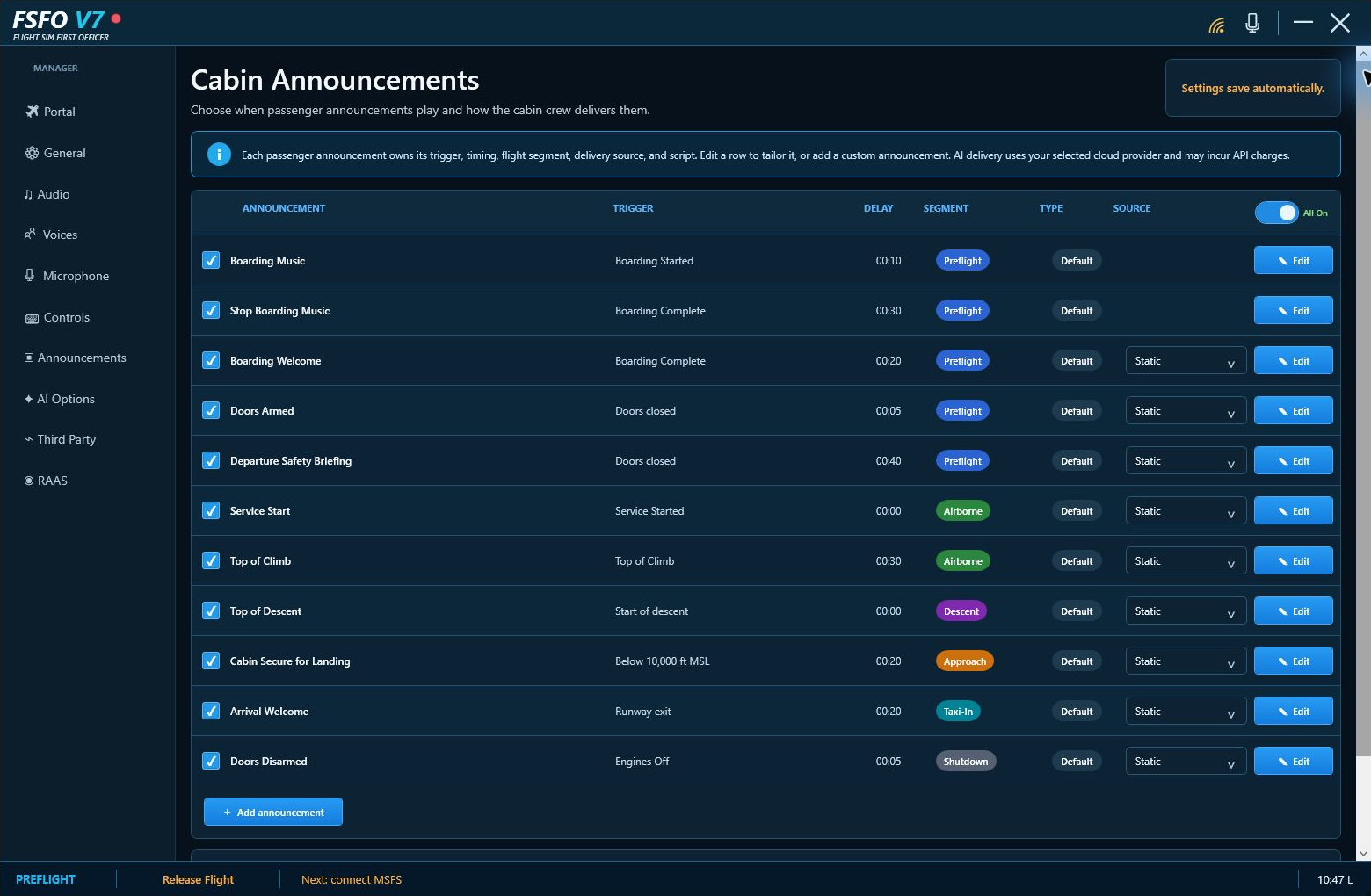
Cabin Announcements
- Announcement checkbox
Turn an individual announcement on or off without removing it.
- All On / All Off
Turn every announcement row on or off together, including boarding music.
- Trigger
Shows the event that starts the announcement’s countdown, such as boarding completion, doors closing or the start of descent. Select Edit to change it.
- Delay
Shows how many seconds FSFO waits after the trigger before playing the announcement. A delay of 0 adds no wait.
- Segment
Shows the stage of flight in which the announcement is allowed. Airborne covers climb and cruise; Custom is not limited to one stage.
- Type
Default means an announcement supplied with FSFO. Custom means one you added. You can edit both; only custom announcements can be deleted.
- Source — Static
Play a saved recording. You can choose your own WAV file in Edit. If you leave that file blank, FSFO looks for the matching installed Cabin Crew recording.
- Source — TTS
Read your saved passenger message aloud using Windows speech on your computer.
- Source — AI (Crew), AI (Pilot), AI (Copilot), AI (Ground)
Generate the wording from your instructions and use the chosen crew role: Cabin Crew, Captain, Copilot or Ground Crew. Set up OpenAI in Third Party for generated wording and Cartesia for generated crew speech. The AI options may incur usage charges; the page shows any missing setup.
- Edit
Open the announcement’s timing, delivery and message settings. Boarding Music and Stop Boarding Music have their own smaller editors.
- Add announcement
Create a new announcement with its own name, trigger, delay, flight segment and message.
The supplied announcements
- Boarding Music
Starts the selected music after boarding begins. The supplied delay is 10 seconds.
- Stop Boarding Music
Stops boarding music after the selected event. The supplied setting is 30 seconds after Boarding Complete.
- Boarding Welcome
Welcomes passengers aboard. The supplied setting is 20 seconds after Boarding Complete during preflight.
- Doors Armed
Plays the cabin door-arming announcement. The supplied setting is 5 seconds after Doors Closed during preflight. This trigger also waits for the first flow and checklist to finish and for closed doors to be confirmed.
- Departure Safety Briefing
Invites passengers to watch the safety demonstration. The supplied setting is 40 seconds after Doors Closed during preflight, with the same first-flow, checklist and confirmed-door conditions.
- Service Start
Announces cabin service when Service Started occurs during climb or cruise.
- Top of Climb
Announces that the aircraft has reached cruise when Top of Climb occurs.
- Top of Descent
Prepares passengers for arrival when descent begins.
- Cabin Secure for Landing
Reminds passengers about seatbelts, tray tables and seatbacks. The supplied setting is 20 seconds after descending below 10,000 feet above sea level, in the Approach stage.
- Arrival Welcome
Welcomes passengers to the destination and asks them to remain seated. The supplied setting is 20 seconds after runway exit during taxi-in.
- Doors Disarmed
Advises the cabin crew about disarming doors. The supplied setting is 5 seconds after Engines Off during shutdown. An announcement does not itself operate a door.
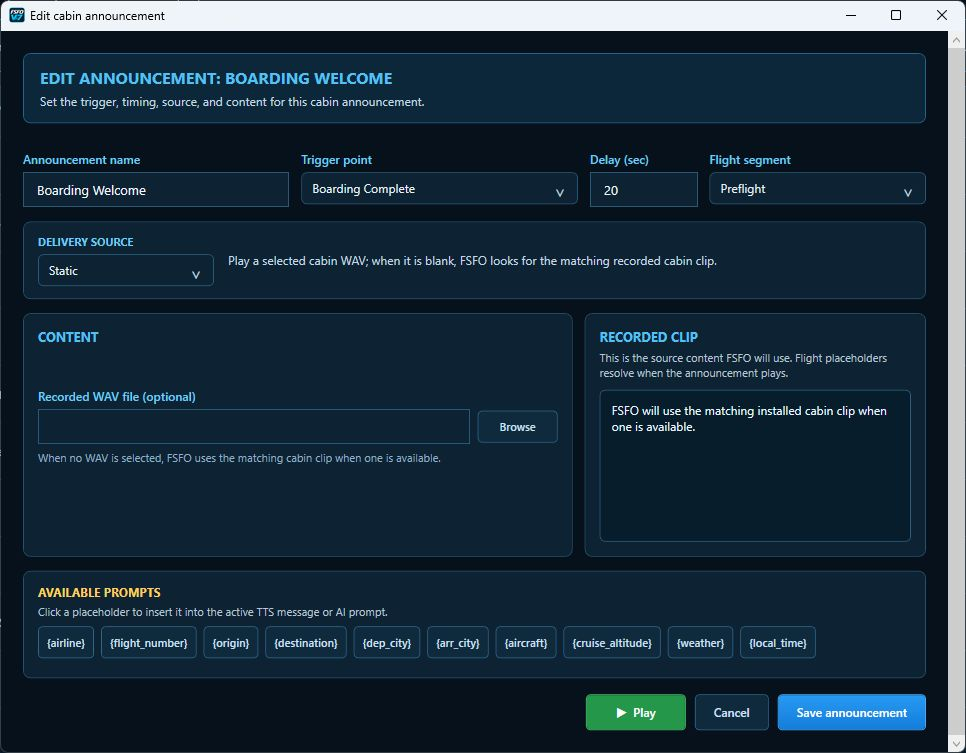
Editing an announcement
- Announcement name
Give a new custom announcement a recognizable name. The names of supplied announcements stay fixed.
Example: Arrival gate information
- Trigger point
Choose the event or altitude that should start the delay. AGL means height above the ground; MSL means altitude above sea level. Manual does not schedule an automatic trigger.
Example: Use Start of Descent for an arrival reminder.
- Delay (sec)
Enter the wait after the trigger in whole seconds, using 0 or a positive number.
Example: 20 waits twenty seconds after the chosen event.
- Flight segment
Choose when the announcement is allowed: Preflight, Climb, Airborne, Descent, Approach, Final, Taxi-In, Shutdown or Custom. Match it to the trigger so the announcement can play at the intended time.
- Delivery source
Choose a recording, Windows text-to-speech or an AI crew role. The editor shows the message controls needed for that choice.
- Recorded WAV file / Browse
For Static delivery, select the recording you want to play. Leave it blank to use the matching installed Cabin Crew clip when one is available.
- Passenger message / local TTS script
For TTS delivery, write the words you want read aloud.
Example: Welcome aboard. Please place smaller bags under the seat in front of you.
- AI prompt
For AI delivery, describe the announcement you want, including any facts the crew should mention. You can ask in your own words.
Example: Give a short, friendly welcome and remind passengers to keep the aisle clear.
- Preview
Shows the selected recording, the message to read or your instructions for the AI announcement. Flight-information tags are filled in when the announcement plays.
- Available prompts
Click a tag to insert current flight information into the message or AI instructions. The choices cover airline, flight number, departure, destination, departure and arrival city, aircraft, cruise altitude, destination weather and a morning/afternoon/evening greeting. Missing flight information is shown as unavailable.
Example: Welcome aboard flight {flight_number} to {destination}.
- Play / Stop
Listen to a preview through the configured output, or stop the preview. Previewing an AI announcement can generate wording and speech and may incur usage charges.
- Save announcement / Cancel
Save keeps the changes. Cancel closes the editor without saving those edits.
- Delete
Remove a custom announcement. Supplied announcements can be switched off instead.
Boarding music editors
- Music selection
In the Boarding Music editor, choose a WAV recording from your FSFO Music folder or choose Playlist.
- Open playlist file
When Playlist is selected, open the list and enter one WAV filename per line, including .wav. Save the list and place the recordings in the FSFO Music or Boarding folder.
- Delay after boarding starts (seconds)
Choose how long to wait after boarding begins before starting music. Use 0 for no added wait.
- Play / Stop
Preview the selected recording or playlist through your cabin output. Music loudness comes from Boarding Music volume in Audio.
- Stop Boarding Music — Trigger point and Delay
Choose whether music stops after Boarding Complete, Boarding Started, Doors Closed or Doors Open, then enter the delay in seconds.
- Save
Keep the music choice or stop timing and close the editor.
AI Options
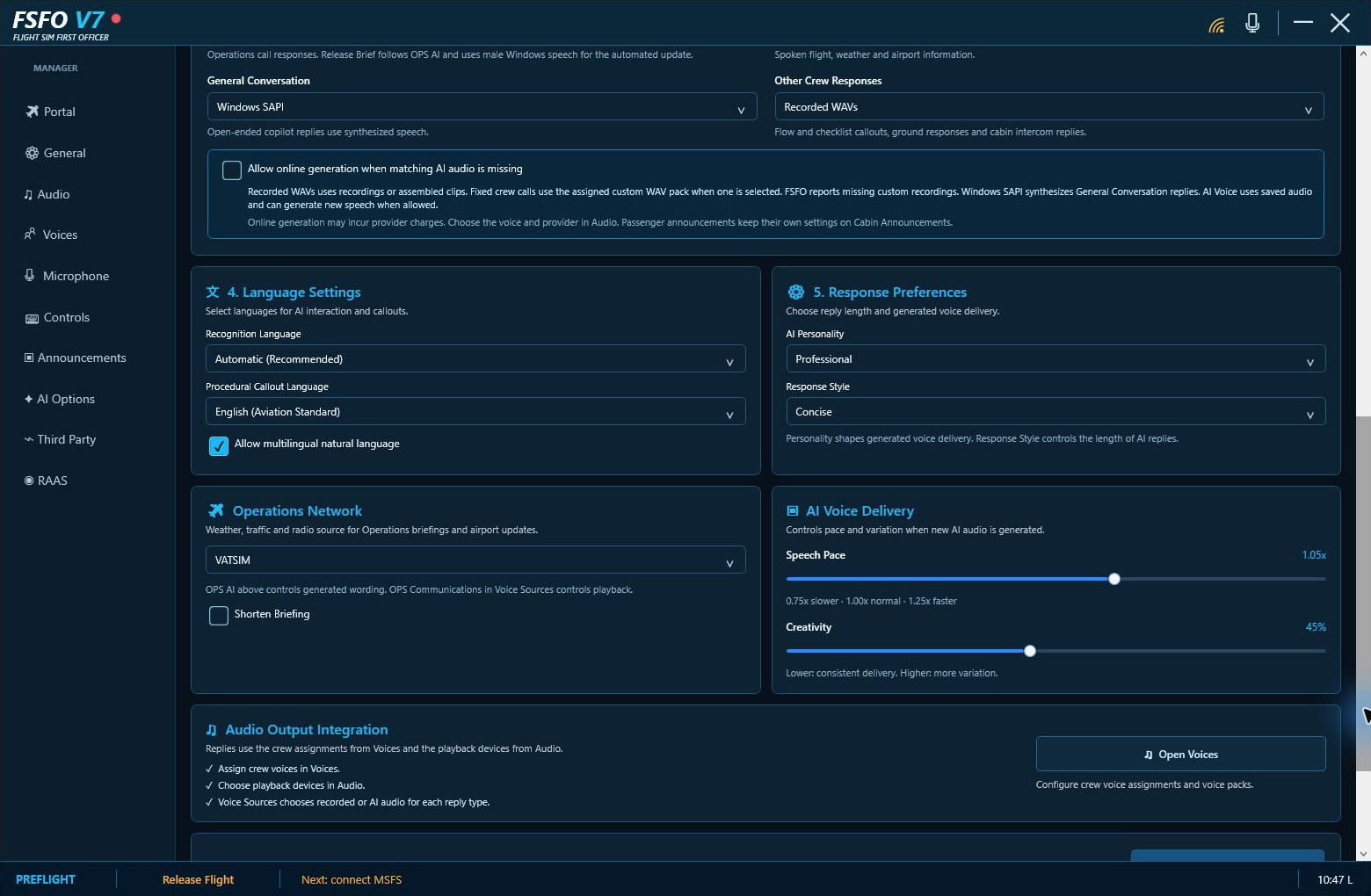
Choose what the copilot may understand with AI and how replies are spoken. OpenAI handles AI understanding and wording; Cartesia generates crew speech. Standard commands still work without AI. Settings save automatically.
Setting this up for the first time? Follow Set up AI and crew speech for provider accounts, API keys, billing, voice choices and your first request.
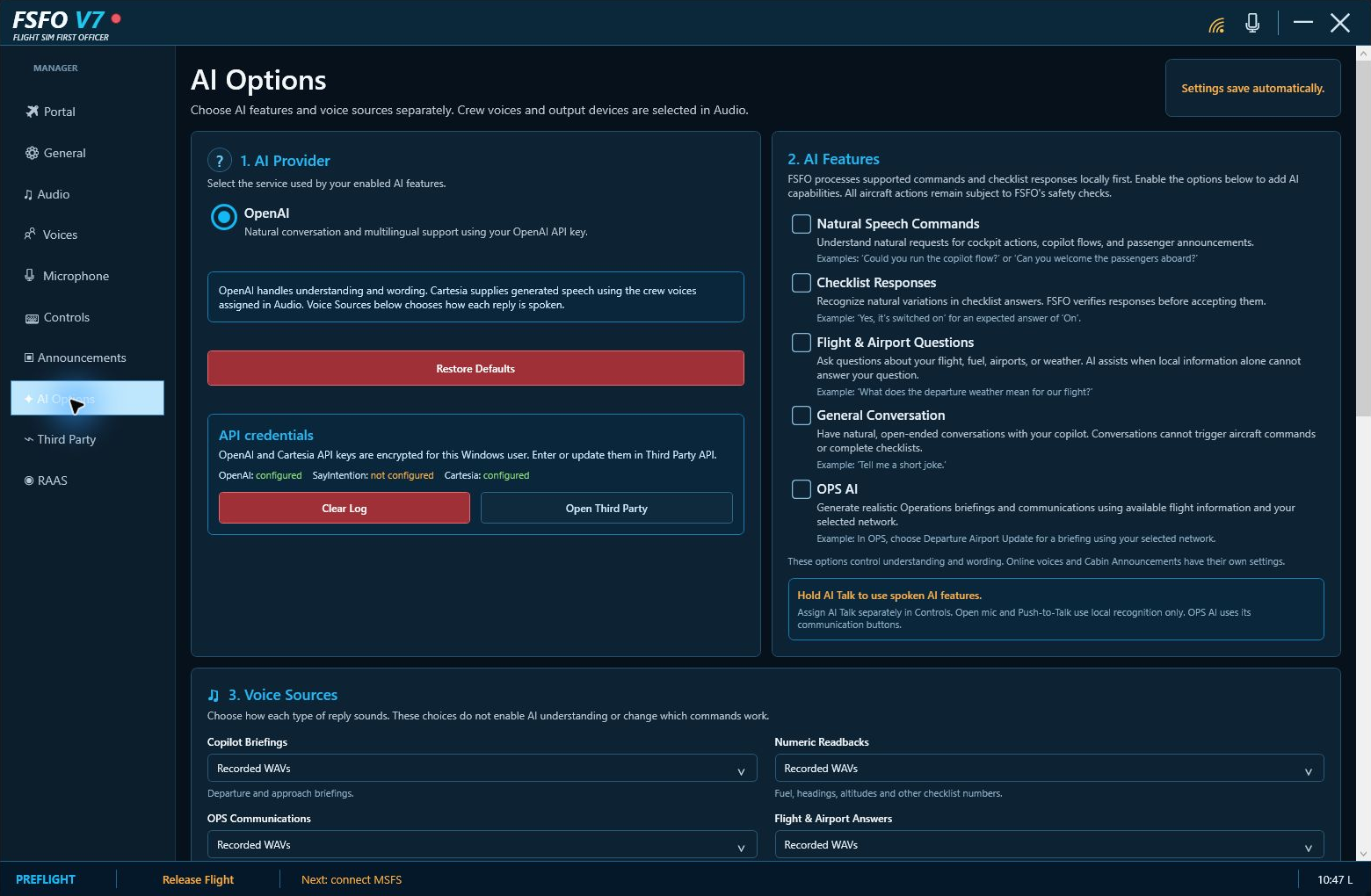
1. AI Provider
- OpenAI
Uses your OpenAI account for enabled AI features. Add and test your OpenAI API key in Third Party. A Cartesia key is used separately when you generate crew speech.
- Restore Defaults
Turns off all AI features and online voice generation. General Conversation returns to Windows speech and the other voice sources return to Recorded WAVs. Your saved API keys are kept.
- API credentials / Open Third Party
Shows which service keys are configured. Open Third Party takes you to the page where you enter, replace and test those keys.
- Clear Log
Clears AI log messages. It keeps interaction totals and flight history.
- Help (?)
Opens the AI Options PDF guide.
2. AI Features
- Natural Speech Commands
Lets you ask for supported cockpit actions, copilot flows and passenger announcements in your own words. Available actions still depend on the aircraft and the current situation. Hold AI Talk for the request.
Example: “Could you run the copilot flow?” or “Please welcome the passengers aboard.” These are examples; you can phrase other supported requests naturally.
- Checklist Responses
Accepts natural variations of an answer to the active checklist item. FSFO still checks whether the answer fits that item. An answer does not itself operate the aircraft control.
Example: For an item expecting “On,” hold AI Talk and say, “Yes, it is switched on.”
- Flight & Airport Questions
Lets you ask about flight, fuel, weather and airport information in your own words. Answers use the information FSFO has available; missing facts cannot be supplied.
Example: Hold AI Talk and ask, “What does the departure weather mean for our flight?”
- General Conversation
Enables open-ended conversation with the copilot. It does not operate aircraft controls or complete checklist items.
Example: Hold AI Talk and say, “Tell me a short joke.” This is only an example; conversation is not limited to a fixed phrase list.
- OPS AI
Creates Operations briefings and communications from available flight information and your selected Operations Network. Use the communication buttons in OPS for these requests.
Example: In OPS, choose Departure Airport Update.
3. Voice Sources
- Copilot Briefings
Choose Recorded WAVs for recorded or assembled departure and approach briefings, or AI Voice for generated speech.
- Numeric Readbacks
Choose Recorded WAVs or AI Voice for fuel, headings, altitudes and other checklist numbers.
- OPS Communications
Choose Recorded WAVs or AI Voice for Operations responses. The automated Release Brief is separate: it follows OPS AI and uses a male Windows voice.
- Flight & Airport Answers
Choose Recorded WAVs or AI Voice for spoken flight, weather and airport answers.
- General Conversation
Choose Windows SAPI, meaning the computer’s built-in spoken voice, or AI Voice for conversational replies.
- Other Crew Responses
Choose Recorded WAVs or AI Voice for flow and checklist callouts, ground responses and cabin intercom replies. Recorded calls use your assigned custom voice pack when selected.
- Allow online generation when matching AI audio is missing
Allows Cartesia to create speech when an AI Voice reply has no saved recording. This needs a valid Cartesia key and can incur usage charges. Saved AI audio can still play with this off; when new audio cannot be generated, FSFO uses Windows speech. Choosing AI Voice changes the sound of a reply, not which commands are available. Passenger announcements have their own settings.
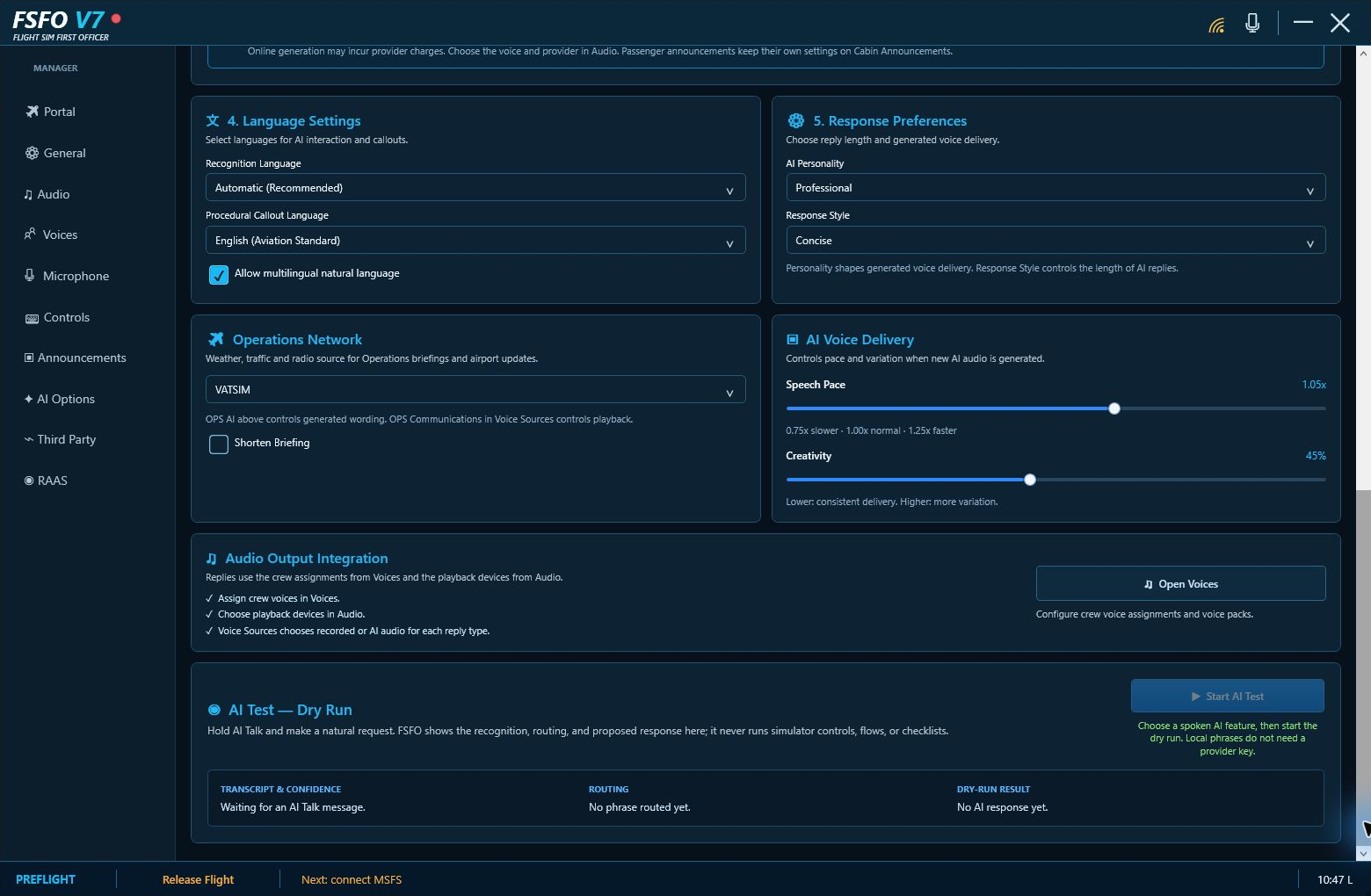
4. Language Settings
- Recognition Language
Sets the language preference supplied to AI. Choose Automatic, English, Spanish, French, German, Italian, Portuguese or Japanese. This does not change the English (United States) requirement for standard local voice commands.
- Procedural Callout Language
Sets the language preference for AI replies: English (Aviation Standard), or Use Recognition Language. It does not translate your installed recordings.
- Allow multilingual natural language
Saves your preference for using more than one language with AI. This option currently does not change speech recognition by itself; standard local commands remain English.
5. Response Preferences
- AI Personality
Choose Professional, Warm and Helpful, Crisp and Direct, or Calm and Reassuring for the delivery of newly generated speech.
- Response Style
Choose Concise for shorter AI replies or Normal for more detail.
Operations Network
- Network
Choose MSFS, VATSIM or Say Intentions as the source for Operations weather, traffic and radio information. Choose the service you are using for that flight. OPS AI controls the wording; OPS Communications controls how the response sounds.
- Shorten Briefing
Keeps the Release Brief to flight essentials and weather, leaving out traffic and NOTAMs.
AI Voice Delivery
- Speech Pace
Sets the pace of newly generated AI speech from 0.75× to 1.25×. Use 1.00× for normal speed.
Example: Choose 0.90× if you prefer a slightly slower delivery.
- Creativity
Sets variation in newly generated voice delivery. Lower values give more consistent delivery; higher values allow more variation.
Audio Output Integration
- Open Voices
Opens crew voice assignments and voice packs. Use Voices to choose who speaks and Audio to choose playback devices.
AI Test — Dry Run
- Start AI Test / Stop AI Test
Enable at least one spoken AI feature and assign AI Talk in Controls. Start the test, hold AI Talk, speak a request and release it. FSFO shows what it heard, which feature would handle it and the proposed result. The test does not run simulator controls, flows or checklists. Click the test button again to stop.
Example: With Natural Speech Commands enabled, try “Could you run the copilot flow?” and review the proposed result.
- Transcript & Confidence / Routing / Dry-run Result
These three readouts show what FSFO heard, which feature would handle your request, and what the copilot would do or say. Check them if a request is misunderstood.
Third Party
Connect FSFO to OpenAI, Cartesia, GSX and SayIntentions. Settings save automatically. Keys are protected for your Windows user account. Each service bills its own usage and subscriptions.
Setting this up for the first time? Follow Set up AI and crew speech for provider accounts, API keys, billing, voice choices and your first request.
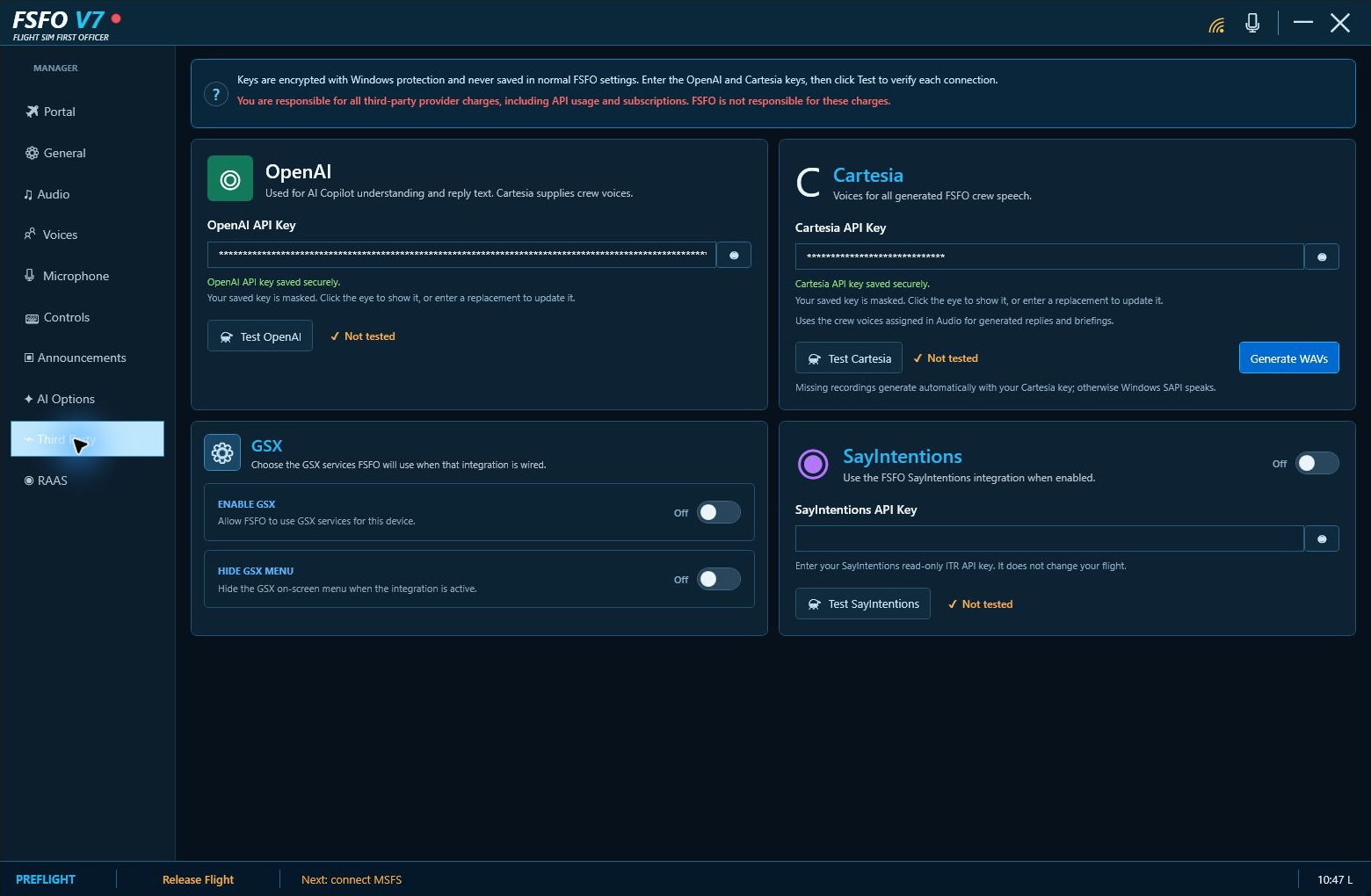
OpenAI
- OpenAI API Key
Enter your OpenAI API key so the copilot can understand natural requests and create replies. Use the eye button to show or hide the key, or replace it to update the saved key.
- Test OpenAI
Checks the saved OpenAI connection. Read the result beneath the button before trying an AI request.
Cartesia
- Cartesia API Key
Enter your Cartesia API key to create crew speech. Choose your crew voices on the Voices page. Use the eye button to show or hide the key.
- Test Cartesia
Checks access to Cartesia voices without creating speech.
- Generate WAVs
Creates missing recordings for the selected crew voices using your Cartesia key. Provider charges apply. Click again to cancel generation. The status beneath the button shows progress or missing-key information.
GSX
- ENABLE GSX
Allows FSFO to use GSX ground services. You must have GSX available, and the aircraft’s selected procedure must use GSX for the service you want.
- HIDE GSX MENU
Hides the GSX on-screen menu when FSFO uses the integration. A saved procedure can have its own menu preference.
SayIntentions
- SayIntentions
Enables the FSFO connection to SayIntentions. Choose Say Intentions under AI Options → Operations Network when you want Operations information from that service.
- SayIntentions API Key
Enter your read-only ITR API key from SayIntentions. FSFO uses it to read information; this key does not change your flight. Use the eye button to show or hide it.
- Test SayIntentions
Checks the saved key by reading traffic information. It does not change your flight.
Help
- Help (?)
Opens the Third Party API setup PDF guide.
RAAS
RAAS adds spoken runway-awareness and approach warnings using the runway layout supplied by the loaded MSFS scenery. These calls are separate from flows and checklists. Settings save automatically. Distances spoken by RAAS follow General → Units of Measurement; fields labeled ft are still entered in feet.
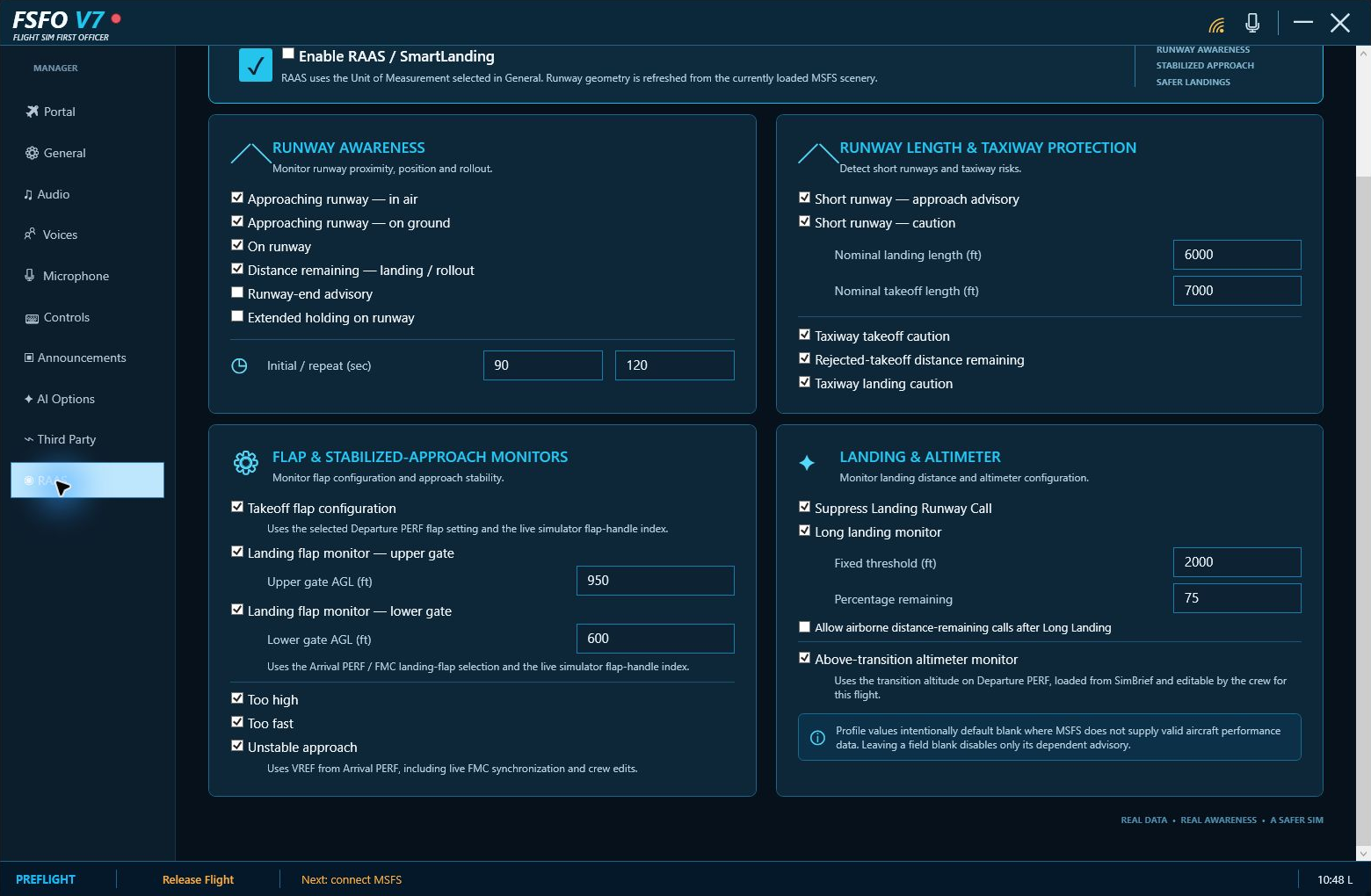
Enable RAAS / SmartLanding
- Enable RAAS / SmartLanding
Turn the runway and approach monitors on or off. Also set Enable FSFO RAAS to Yes in the SOP for your aircraft. An individual warning still needs its own checkbox enabled and the required flight information.
Runway Awareness
- Approaching runway — in air
Announce the runway you are approaching in flight when FSFO identifies the runway approach.
- Approaching runway — on ground
Announce a nearby runway as you approach it on the ground. This uses the runway position, not an airport’s painted holding-point markings.
- On runway
Announce the runway when you are on it and aligned with it.
- Distance remaining — landing / rollout
Call the runway distance remaining during the landing roll.
- Runway-end advisory
Warn when you are nearing the end of the runway.
- Extended holding on runway
Repeat a runway reminder when you remain stopped on the runway.
- Initial / repeat (sec)
The first box sets the wait before the holding reminder; the second sets the interval between later reminders. Use 0, 30, 60, 90, 120, 180, 240 or 300 seconds. Initial 0 disables these reminders; repeat 0 prevents repeats.
Example: Initial 90 and repeat 120 gives the first reminder after 90 seconds, then every two minutes while the holding condition continues.
Runway Length & Taxiway Protection
- Short runway — approach advisory
Advise when the landing runway is shorter than your nominal landing length. It also advises when the runway available from your takeoff position is shorter than your nominal takeoff length.
- Short runway — caution
Add the more urgent short-runway warning close to landing or during a takeoff roll with insufficient configured runway length. Turn both short-runway options off if you do not want these calls.
- Nominal landing length (ft)
Enter the runway length you want FSFO to compare with the landing runway. This is a value you supply, not a landing-distance calculation. A blank or invalid entry returns to the default value.
- Nominal takeoff length (ft)
Enter the runway length you want FSFO to compare with the runway available from your takeoff position. A blank or invalid entry returns to the default value.
- Taxiway takeoff caution
Warn when ground speed passes 40 knots without alignment on a recognized runway.
- Rejected-takeoff distance remaining
Call the runway distance remaining during a detected rejected takeoff.
- Taxiway landing caution
Warn on a low approach near an airport when the aircraft is not aligned with a recognized runway.
Flap & Stabilized-Approach Monitors
- Takeoff flap configuration
Compare the actual flap selection with Departure PERF and warn about a mismatch on takeoff. The current automatic flap comparison is supported for PMDG 737 and iFly 737.
- Landing flap monitor — upper gate
Warn if the selected landing flaps are not set by the higher check height. The current automatic flap comparison is supported for PMDG 737 and iFly 737 and uses the landing flap selection from Arrival PERF or the supported aircraft’s flight computer.
- Upper gate AGL (ft)
Set the higher flap-check height in feet above the airfield. The accepted range is 300–3,000 feet; the default is 950 feet.
- Landing flap monitor — lower gate
Add another flap check lower on the approach, using the same aircraft and landing-flap conditions as the upper check.
- Lower gate AGL (ft)
Set the lower flap-check height in feet above the airfield. Keep it below the upper gate. The accepted range is 300–3,000 feet; the default is 600 feet.
- Too high
Warn when your height relative to the runway puts you above the expected approach path near landing.
- Too fast
Warn about excessive approach speed using the VREF value on Arrival PERF. This RAAS warning is separate from the aircraft SOP’s Monitor Approach Speed option and its VAPP target.
- Unstable approach
Warn low on approach when an active flap, height or speed problem remains. It uses those monitored conditions; it is not a complete assessment of every stabilized-approach criterion.
Landing & Altimeter
- Suppress Landing Runway Call
After touchdown, silence On runway and Approaching runway calls until you leave the landing runway. Other RAAS warnings remain available.
- Long landing monitor
Warn if you are still airborne close above the runway after passing either of the touchdown limits below. FSFO uses whichever limit is reached first.
- Fixed threshold (ft)
Set how far past the runway threshold you may travel while still airborne before the long-landing warning. The accepted range is 100–10,000 feet.
Example: 2,000 means a warning if you are still airborne after traveling 2,000 feet along the runway, unless the percentage limit is reached earlier.
- Percentage remaining
Set how much of the runway should still remain when you touch down. The accepted range is 1–99 percent.
Example: 75 means the percentage limit is reached after you have used the first quarter of the runway.
- Allow airborne distance-remaining calls after Long Landing
After a long-landing warning, allow runway-distance calls to begin while you are still airborne.
- Above-transition altimeter monitor
Remind you to select standard pressure if you stay above the Departure PERF transition altitude with the altimeter still on a local pressure setting. Review that transition altitude for the current flight.
No settings match your search. Try a shorter word or clear the search.